9 Must‑Use Tools to Test Your Site’s Accessibility

Featured Image photo credit to Sherm for Disabled And Here
More than 1 billion people worldwide (roughly 15 % of the global population) live with some form of disability, according to the World Health Organization. Yet a staggering number of websites still fall short of basic accessibility standards, leaving millions of users stranded.
Ensuring that everyone – including people with visual, auditory, motor, or cognitive impairments – can navigate your site isn’t just good practice; it’s often a legal requirement. These tools give you fast, reliable feedback so you can fix issues before they reach real users.
1. WAVE (Web Accessibility Evaluation Tool)
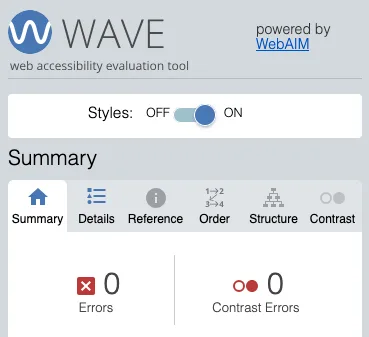
WAVE (Web Accessibility Evaluation Tool) is a free, browser‑based service from WebAIM that lets anyone assess a web page’s compliance with the Web Content Accessibility Guidelines (WCAG). By entering a URL, or by installing the WAVE browser extension. You receive an instant visual overlay that marks errors (red icons), alerts (yellow icons), and structural elements (gray icons) directly on the page. Each icon links to a brief, plain‑language explanation of the issue, along with suggestions for remediation. Because the results are presented on the page, designers and developers can quickly see exactly where a problem occurs. Making it especially useful for rapid, iterative testing during the design phase.
Beyond the visual overlay, WAVE also generates a detailed report that enumerates the types and counts of accessibility failures, such as missing alt text, insufficient color contrast, or improper heading hierarchy. The tool supports both automated checks (e.g., ARIA attribute misuse) and manual evaluation cues (e.g., “does the link text make sense out of context?”), encouraging a holistic approach that blends machine‑detected problems with human judgment. While WAVE doesn’t replace comprehensive user testing with assistive technologies, it serves as an accessible first line of defense, helping teams catch common barriers early and move toward a more inclusive web experience.
2. axe DevTools (by Deque)
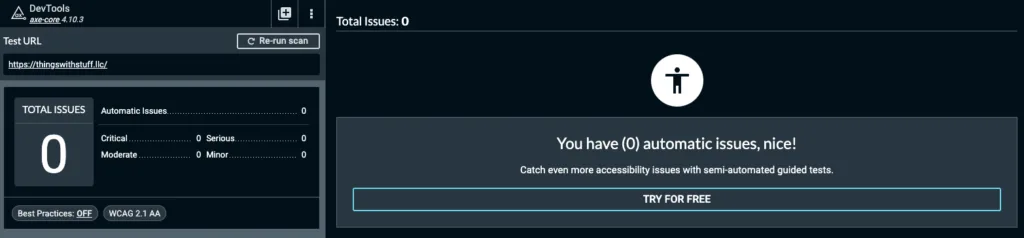
axe DevTools is a free browser extension available for Chrome and Firefox, that brings automated accessibility testing directly into the developer console. Powered by Deque’s open‑source axe-core engine, the tool scans the currently loaded page against the latest WCAG 2.1 and 2.2 success criteria, then presents a clear, prioritized list of violations, warnings, and passes. Each finding includes a concise description, the exact element selector, and actionable remediation guidance, allowing developers to fix issues on the spot without leaving their coding environment. Because it integrates with the standard DevTools UI, axe DevTools fits naturally into everyday front‑end workflows, making it ideal for quick sanity checks during development or for deeper audits of complex components.
Beyond the basic extension, axe DevTools offers advanced features such as rules configuration, custom rule creation, and automated testing via the “Run All” command, which can be scripted into continuous‑integration pipelines. The extension also provides a “Contrast” view that highlights insufficient color contrast and a “Tab order” inspector to verify logical keyboard navigation. By surfacing both common pitfalls (missing alt attributes, ARIA misuse) and more nuanced problems (inadequate focus management), axe DevTools empowers teams to adopt a proactive, test‑driven approach to accessibility, ultimately reducing the risk of costly post‑release fixes and helping ensure that web products are usable by everyone.
3. Lighthouse (Google Chrome)
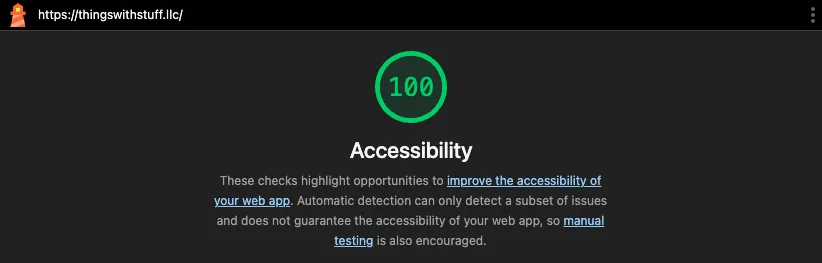
Lighthouse is an open‑source auditing tool built into Google Chrome’s DevTools that evaluates web pages across several dimensions: performance, SEO, progressive‑web‑app compliance, and accessibility. When you open the “Lighthouse” panel, select the “Accessibility” category, and run an audit, Lighthouse renders a score out of 100 and produces a list of specific issues (e.g., missing ARIA labels, inadequate color contrast, unlabeled form controls). Each item comes with a short description, a direct link to the offending element, and concrete, step‑by‑step remediation advice, making it easy for developers to prioritize fixes without leaving the browser.
Beyond the on‑the‑fly checks, Lighthouse can be executed programmatically via the Node.js CLI or integrated into continuous‑integration pipelines, allowing teams to enforce accessibility thresholds as part of their build process. The tool also bundles related metrics, such as First Contentful Paint and Total Blocking Time, so developers can see how accessibility improvements intersect with overall user experience. By providing both a quick, visual snapshot for ad‑hoc debugging and a reproducible, automated workflow for larger projects, Lighthouse helps ensure that accessibility is treated as a core quality gate rather than an afterthought.
4. Pa11y
Pa11y is a lightweight, command‑line utility that runs automated accessibility audits against one or many web pages using the axe‑core engine. After installing the npm package, you can invoke pa11y <url> to receive a concise JSON or plain‑text report that lists WCAG violations, warnings, and passes, each accompanied by a description, the CSS selector of the offending element, and a suggested fix. Because it operates from the terminal, Pa11y fits naturally into developer workflows and can be scripted to crawl entire sites, making it especially valuable for catching regressions early in the development cycle.
Beyond single‑page checks, Pa11y offers powerful extensions such as Pa11y‑CI, which integrates the tool into continuous‑integration pipelines (GitHub Actions, GitLab CI, Jenkins, etc.) and enforces configurable accessibility thresholds. It also supports custom configuration files where you can enable or disable specific rules, set ignore patterns, and define viewport sizes to simulate different devices. By providing automated, repeatable testing that can be version‑controlled alongside your codebase, Pa11y helps teams maintain a consistent accessibility baseline and reduces the likelihood of costly post‑release fixes.
5. IBM Equal Access Accessibility Checker

IBM Equal Access Accessibility Checker is a free, browser‑based extension that scans any web page for compliance with the Web Content Accessibility Guidelines and the IBM Equal Access standards. Once installed, the checker adds a toolbar button that, when clicked, runs an automated audit and highlights errors, alerts, and structural issues. Each finding includes a concise description, the affected element’s selector, and a link to IBM’s detailed remediation guide, which explains why the issue matters and offers concrete code‑level fixes. The tool also generates a summary report that categorizes violations by severity and maps them to specific WCAG success criteria, giving developers a clear roadmap for prioritizing work.
The checker supports customizable rule sets, enabling organizations to enforce stricter internal policies or focus on particular WCAG techniques relevant to their audience. By coupling instant visual feedback with robust documentation and automation options, IBM Equal Access Accessibility Checker helps developers embed accessibility into their regular development workflow, reducing the risk of costly retrofits and ensuring a more inclusive digital experience.
6. NVDA (NonVisual Desktop Access)
NVDA (NonVisual Desktop Access) is a free, open‑source screen reader for Windows that enables blind and low‑vision users to interact with the operating system and applications through synthesized speech and Braille output. Once installed, NVDA reads everything displayed on the screen; menus, dialogs, web pages, and document content by interpreting UI Automation, MSAA, and HTML accessibility APIs. Its lightweight design means it can run from a USB stick without requiring administrative privileges, making it ideal for both personal use and public‑computer environments. NVDA supports over 50 languages, integrates with popular browsers (Chrome, Firefox, Edge) and office suites, and works with a wide range of refresh-able Braille displays, providing a flexible, cost‑effective alternative to commercial screen readers.
Beyond basic navigation, NVDA offers advanced features that empower power users and developers. It includes a scripting language that allows customization of key bindings, pronunciation dictionaries, and behavior for specific applications, facilitating tailored solutions for complex workflows. The software is actively maintained by a vibrant community, with frequent updates that keep pace with Windows releases and emerging accessibility standards. Because NVDA adheres closely to WCAG and ARIA best practices, it also serves as a valuable testing tool for developers seeking to evaluate how well their web content performs with screen‑reading technology.
7. VoiceOver (macOS/iOS)
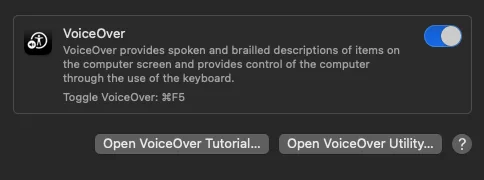
VoiceOver is Apple’s built‑in screen‑reader that provides spoken feedback and Braille output for macOS, iOS, iPadOS, and watchOS devices. When activated, it reads everything that appears on the screen (menus, buttons, text fields, web content, and system notifications) by interpreting the platform’s accessibility APIs (AXUIElement on macOS and UIAccessibility on iOS). Users navigate via keyboard shortcuts on a Mac (e.g., Control‑Option + Arrow keys) or gestures on touch devices (three‑finger swipes, taps, and rotor actions). VoiceOver supports dozens of languages and integrates tightly with native Apple apps, third‑party software, and external Braille displays, delivering a seamless, zero‑cost solution for blind and low‑vision users across Apple’s ecosystem.
Beyond basic reading, VoiceOver offers powerful customization and development tools. On macOS, the VoiceOver Utility lets users adjust speech rate, verbosity, audio cues, and Braille settings, while the Rotor on iOS provides quick access to navigation categories such as headings, landmarks, or form controls. Developers can test their apps’ accessibility by enabling VoiceOver and using the Accessibility Inspector to examine element properties, role definitions, and ARIA attributes. Because VoiceOver is deeply integrated into the operating system, it not only serves end‑users but also acts as a reliable reference point for designers and engineers aiming to create inclusive experiences on Apple platforms.
8. Colour Contrast Analyzer (CCA)
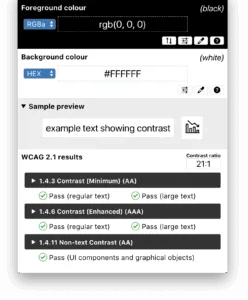
Colour Contrast Analyzer (CCA) is a lightweight desktop utility that helps designers and developers verify that foreground‑background colour combinations meet the contrast ratios required by the Web Content Accessibility Guidelines. After selecting the text color and its background, CCA instantly calculates the contrast ratio and indicates whether the pair satisfies WCAG AA (4.5:1 for normal text, 3:1 for large text) or AAA (7:1 for normal text, 4.5:1 for large text) thresholds. The tool presents the result with a clear pass/fail status, the exact numeric ratio, and a visual preview, allowing creators to quickly iterate on color choices without leaving their design workflow.
Beyond simple ratio checks, CCA supports simulation modes that approximate how color‑blind users perceive the same palette, helping identify problems that pure contrast numbers might miss. It also offers batch testing for multiple color pairs, export of results for documentation, and integration hints for popular design tools. By providing an immediate, standards‑compliant assessment of color accessibility, CCA enables teams to catch contrast issues early, reduce rework, and ensure that textual content remains readable for users with visual impairments.
9. Keyboard‑Only Navigation Test
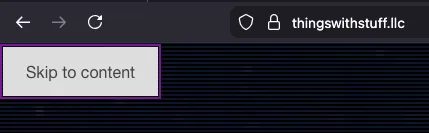
A Keyboard‑Only Navigation Test is a manual accessibility verification method that ensures every interactive element on a webpage can be reached and operated using only the keyboard. Typically the Tab, Shift + Tab, Enter, Space, Arrow keys, and Escape. By cycling through the page with Tab (forward) and Shift + Tab (backward), testers confirm that focus moves in a logical, predictable order, that focus indicators are clearly visible, and that all controls (links, buttons, form fields, menus, modal dialogs, etc.) respond appropriately without requiring a mouse or touch input. The test also checks for hidden or “focus‑trap” elements that prevent users from exiting a component, and verifies that custom widgets expose proper ARIA roles and keyboard handlers so that assistive‑technology users can interact with them seamlessly.
Beyond the basic tab sequence, a thorough Keyboard‑Only Navigation Test examines additional keyboard interactions such as arrow‑key navigation within menus, radio groups, and data tables; shortcut keys for activating actions; and the ability to close overlays or dialogs with Escape. It also involves confirming that skip‑link mechanisms (e.g., “Skip to main content”) function correctly, allowing users to bypass repetitive navigation blocks. By systematically validating these behaviors, teams can catch a range of accessibility regressions that automated scanners often miss, ensuring that the site complies with WCAG 2.1 Success Criterion 2.1.1 (Keyboard) and delivers an inclusive experience for users who rely exclusively on keyboard input.
In Conclusion
Wrapping up, a robust accessibility workflow hinges on combining automated scans with real‑world testing. Use visual tools like WAVE and Colour Contrast Analyzer for quick diagnostics, dive deeper with axe DevTools, Lighthouse, or Pa11y for systematic audits, and validate the experience through screen readers such as NVDA and VoiceOver plus a hands‑on Keyboard‑Only Navigation Test. By regularly running these checks throughout design, development, and deployment, you’ll catch barriers early, stay compliant with WCAG, and deliver a site that welcomes every visitor, regardless of ability. Take the first step today: pick one of the free tools, run an audit on a key page, and iterate until your accessibility score reflects the inclusive experience you aim to provide.
Ready to make your digital experience truly inclusive?
Partner with Things With Stuff LLC and let our expert accessibility team audit, remediate, and certify your website or app. From automated scans to hands‑on screen‑reader testing, we’ll help you meet WCAG standards, avoid costly compliance risks, and reach a wider audience—all while preserving your brand’s look and feel. Contact Us today to discuss your project needs.